 how-to
Trading Bot VPS Hosting Requirements for MT5 Beginners
Quick Summary
A trading bot VPS is a virtual private server that runs your MetaTrader 5 platform and expert advisor around the clock, so trades keep executing when your home computer sleeps or loses connection. For most MT5 beginners, a Windows VPS with 2-4 virtual CPU cores and 4-8 GB RAM is a practical starting point for a few bots.
- Pick a data center in the same region as your broker's trading server to reduce latency.
- Start with a Starter plan of 1-2 CPU cores and 2-4 GB RAM for one bot and a few charts.
- Move up a tier if MT5 slows or order execution lags during busy market hours.
- Keep backtests and optimization on a separate machine so they do not spike live-bot resources.
- Test your bot on a demo account before running it live with real money.
Table of Contents
- What a Trading Bot VPS Does and Why MT5 Traders Use One
- Minimum CPU, RAM and Storage for an MT5 Trading Bot
- Windows VPS for Trading: Why MT5 Usually Needs It
- Best VPS for Forex MT5: Choosing a Provider and Server Location
- Trading Bot VPS Latency and Uptime: How to Measure Them
- Step-by-Step: Setting Up a VPS for Your VPS for Forex Robot
- Start Your MT5 Setup With CYOR Standard
- Frequently Asked Questions
Trading Bot VPS Hosting Requirements for MT5 Beginners (Source: MetaTrader 5 system requirements)
Last Updated: November 5, 2026
What a Trading Bot VPS Does and Why MT5 Traders Use One
A trading bot VPS is a virtual private server that runs your MetaTrader 5 (MT5) platform and your automated trading robot around the clock. Your home computer sleeps, loses internet, or restarts for updates. A VPS does not. New traders often ask the same question: what exactly does the server need to do?
The answer is simple. It keeps MT5 open, keeps your expert advisor connected to your broker, and places trades when your rules say so. If the connection drops for an hour, your bot may miss entries or fail to close a losing position on time.
Here is what a VPS typically handles for an MT5 bot:
- Keeps MT5 running 24 hours a day
- Maintains a steady connection to your broker's server
- Runs your expert advisor without interruption
- Restarts the platform after a reboot, if configured
- Gives you remote access from any device
A VPS is not magic, though. It will not make a weak strategy profitable. It only makes sure a strategy you have already tested runs reliably. Keep that in mind as you read the requirements below.
Minimum CPU, RAM and Storage for an MT5 Trading Bot
Most single-bot MT5 setups run well on modest hardware, but 'modest' is not a specification. The exact needs depend on how many charts, indicators, and bots you run at once, and on whether you run one account or several. Instead of guessing, translate your workload into a configuration you can actually buy.
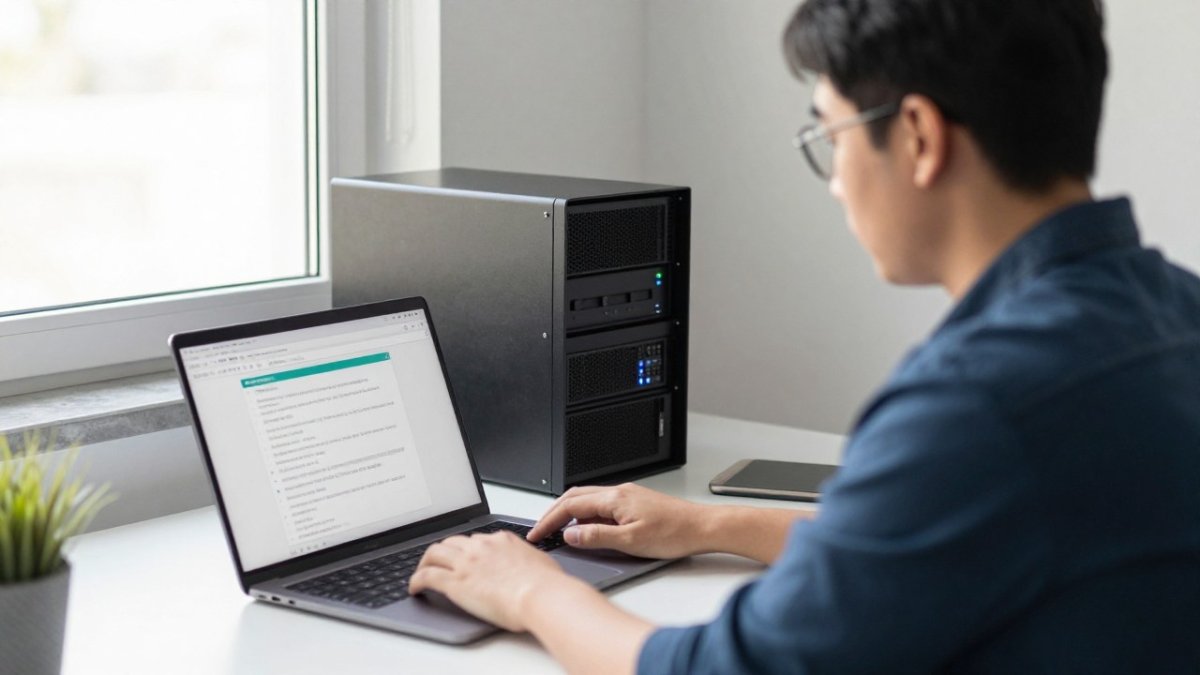
Start with these baseline ideas, then use the workload table below to pick a tier:
- CPU: A small number of virtual cores is usually enough for one or two bots. More cores help when you run many charts at the same time, because each chart with indicators adds processing work on every tick.
- RAM: MT5 itself uses memory, and each open chart adds to the load. Extra memory keeps the platform stable when you add more pairs or run multiple expert advisors in one terminal.
- Storage: MT5 history data and logs take space, so a standard SSD with enough free room is sufficient for most users. NVMe storage speeds up history downloads and backtests but rarely changes live bot behavior.
Sizing Resources by Workload
Sizing depends on what your bot actually does. A single trend-following expert on one pair uses far less than a setup running ten bots across multiple brokers. Use these three tiers as a starting point, then adjust after a week of observation:
- Starter (light): One bot, one or two charts, one broker account, a few indicators. A plan with 1-2 virtual CPU cores and 2-4 GB RAM is typically enough. This is the right tier for a beginner running a single expert advisor on a demo or small live account.
- Recommended (medium): Two to four bots, several charts, one account, or one bot across multiple pairs. Look for 2-4 virtual CPU cores and 4-8 GB RAM. This tier absorbs busy market hours without the platform slowing down.
- High-load (heavy): Many bots, many charts, or multiple accounts running together, especially with backtesting or optimization running on the same server. Plan for 4 or more virtual CPU cores and 8 GB RAM or more, plus generous SSD space for history and logs.
A common pattern is to start one tier above the bare minimum, then watch the MT5 terminal's CPU and memory use over a normal trading week before deciding whether to upgrade. If the platform slows down during busy market hours, or if order execution lags while charts are updating, that is a clear sign you need more resources. The opposite mistake, over-provisioning a single bot on a large plan, wastes money without improving execution.
Watch out: running backtests or strategy optimization on the same VPS as your live bot can spike CPU and RAM and delay live order handling. Keep heavy testing on a separate machine or schedule it outside active trading hours.
Before you buy any plan, check the official system requirements from MetaQuotes and your chosen VPS provider. Requirements change as the software updates, so confirm any specific numbers against the current documentation.
The table below summarises the three workload tiers and the resources the article suggests for each.
| Tier | Typical workload | Suggested resources |
|---|---|---|
| Starter (light) | One bot, one or two charts, one account | 1-2 virtual CPU cores, 2-4 GB RAM |
| Recommended (medium) | Two to four bots, several charts, one account | 2-4 virtual CPU cores, 4-8 GB RAM |
| High-load (heavy) | Many bots, many charts, or multiple accounts | 4+ virtual CPU cores, 8 GB RAM or more |
Windows VPS for Trading: Why MT5 Usually Needs It
MT5 is built for Windows. The desktop version of the platform runs natively on Windows, which makes a Windows VPS the most straightforward choice for most traders. Many forex robots and tools are also written for the Windows version of MT5.
A Windows VPS gives you a familiar desktop. You can log in with remote desktop, install MT5 the same way you would on your own PC, and manage your bot without learning command-line tools. This matters a lot for beginners.
Linux VPS plans are cheaper in some cases, but running MT5 on Linux usually requires extra software such as Wine, and setup can get messy. For most MT5 beginners, a Windows VPS avoids that headache. Confirm your broker and bot both support the setup you pick before you pay for a plan.
Best VPS for Forex MT5: Choosing a Provider and Server Location
Choosing a provider comes down to a few practical checks. Price matters, but reliability and location matter more for a bot that trades live. (Source: understanding VPS specifications)
Compare providers on these points:
- Uptime guarantees and how the provider handles outages
- Data center location and network quality
- Windows support and pre-installed MT5 options
- Remote desktop access and support response time
- Monthly cost and what happens if you need to upgrade
Server location also affects speed. A VPS placed close to your broker's trading server usually gets prices and order confirmations faster. Ask your broker where its trading servers sit, then choose a VPS data center in the same region when you can.
Be cautious of any provider that promises perfect uptime or unrealistic speeds. Ask for documented policies instead. Read reviews, but verify claims yourself before you commit.
Trading Bot VPS Latency and Uptime: How to Measure Them
Latency is the delay between your bot sending an order and the broker receiving it. Uptime is the share of time your VPS stays online and reachable. Both matter for automated trading, and you can measure both yourself with tools already on the server. Here is how to measure, interpret, and act on the numbers.
Measuring Round-Trip Latency
Round-trip latency is the time for a signal to travel from your VPS to the broker's trading server and back. To measure it:
- Ask your broker for the address of its trading server (often shown in the MT5 login dialog or account settings).
- From the VPS, open Command Prompt and run
ping <broker-server-address>several times, or usetracertto see the path. - Record the average and the worst-case times, not just the best. Test at several times of day, because network congestion changes between sessions.
- Repeat the test from a VPS in a different data center region to compare.
Lower numbers are better, but the absolute figure matters less than consistency. A steady 30-60 ms is usually fine for most retail bots; spikes into the hundreds of milliseconds during news events are the real risk. Choose a VPS data center in the same region as your broker's trading servers when you can, that single decision often does more for latency than any plan upgrade.
Watch out: a fast ping does not guarantee good execution. Market spread, broker policy, order type, and your bot's own logic all affect the final fill price. Network latency is only one part of the delay you experience; execution slippage is the difference between the price your bot expected and the price it actually got, and it can be larger than the network delay itself. Measure both, ping for the network, and your broker's trade history for the fills.
Measuring Uptime and Connection Stability
Uptime is harder to measure than latency because problems are intermittent. Track whether your VPS and MT5 stay connected over a few weeks:
- Note any disconnects in a simple log with the date and time.
- Check the MT5 terminal's connection status and the journal tab for reconnection events.
- If you see frequent drops, contact your provider with the dates and times. That record gives support something concrete to work with.
A common pattern is to see brief disconnects during provider maintenance windows. Ask your provider when maintenance happens and whether it is announced in advance. If your bot must trade through those windows, plan around them or choose a provider with a documented maintenance policy.
Be cautious of any provider that promises perfect uptime or unrealistic speeds. Ask for documented policies instead, and verify claims yourself before you commit.
Step-by-Step: Setting Up a VPS for Your VPS for Forex Robot
Follow these steps to get a basic MT5 setup running on a VPS:
- Choose a Windows VPS plan that meets the minimum requirements above, and pick a data center near your broker.
- Log in with remote desktop using the IP address and password your provider sends you.
- Install MetaTrader 5 from your broker's official download page, not a third-party site.
- Log in to your trading account and confirm the connection status shows as connected.
- Copy your expert advisor into the MT5 Experts folder, then restart MT5 so it loads.
- Enable automated trading in the MT5 toolbar and attach the expert to a chart.
- Test on a demo account first to confirm the bot places and closes trades as expected.
- Set up auto-restart so MT5 reopens after a Windows update or reboot.
Before going live, confirm your VPS shows steady connection status for at least a few days. Then run the bot on a small position size and watch its behavior closely.
Start Your MT5 Setup With CYOR Standard
If you want an MT5 setup built around disciplined, rules-based trading, CYOR Standard is designed with that goal in mind. The current Standard modes are Core, FONK Forex and CYOR Auto.
You can try CYOR Standard free for 7 days at https://account.cyorinc.com/?utm_source=grandranker&utm_medium=organic&utm_campaign=mt5_trial. No card is needed to start, and there is no automatic charge when the trial ends. The trial begins when you activate an MT5 account. You will need MT5 on a desktop or a compatible VPS to run it. If you decide to continue after the trial, the Standard plan is $150 per month. You only pay if you choose to keep going.
Historical results are available at https://account.cyorinc.com/backtests.html. Those figures are backtests, meaning simulated results from past market data. They are not a promise of live performance, so review them carefully and test on a demo account before you trade real money.
Frequently Asked Questions
Does an MT5 trading bot need a Windows VPS?
MT5 is a Windows-native desktop platform, so most traders run it on a Windows VPS to avoid extra compatibility steps. Many MT5 brokers offer Windows server images, and the platform runs on Windows Server without modification. Linux setups are possible with emulation layers such as Wine, but these add troubleshooting work for beginners. Check your broker's documentation before choosing, and confirm your bot's EA runs on the operating system you select.
How much RAM does a forex trading bot need on a VPS?
A single MT5 terminal running one or two Expert Advisors usually runs comfortably on a small plan with a few gigabytes of RAM, but memory needs grow with the number of charts, open terminals and history loaded. Start with a modest plan, watch memory use in Task Manager during trading hours, and upgrade only if the terminal slows down or disconnects. Testing your specific bot is more reliable than relying on any fixed number.
Does VPS location affect forex trading latency?
Yes. Placing the VPS in a data centre close to your broker's trade servers generally reduces the time between a signal and order execution. Measure round-trip latency with a ping test from several candidate locations to your broker's server before committing. Lower latency helps most with fast-moving strategies; slower strategies are less affected.
Which VPS is best for running an MT5 trading bot?
The best choice depends on your broker's server location, your bot's resource use and your budget. Compare providers on data-centre location, Windows support, reliability guarantees and whether they allow trading software. Test a trial or short-term plan first, measure latency and uptime for a week, and then decide. CYOR Standard offers a 7-day free trial for MT5 users, with no card needed to start and no automatic charge; the trial starts when an MT5 account is activated, and an MT5 desktop or compatible VPS is required. After the trial, the Standard plan costs $150 per month only if you choose to continue. Historical results for the strategies are available at https://account.cyorinc.com/backtests.html; these backtests are not a guarantee of live performance.